 EVE Buddy
To install EVE Buddy, download the latest release for your platform. The app ships as a single executable file that can be run directly. When you run the app for the first time it will automatically install itself for the current user (i.e. by creating folders in the home folder of the current user).
Windows
- Download the Windows zip file.
- Unzip the file into a directory of your choice and run the .exe file to start the app.
Windows Defender (and similar programs) may incorrectly report EVE Buddy as containing a trojan. This is usually a false positive caused by a known issue with programs made with the Go programming language. Each EVE Buddy release is built from scratch on a fresh Windows container provided by GitHub, so it is highly unlikely to be infected. If this happens to you, please exclude EVE Buddy’s executable from Windows Defender (and similar programs) to proceed.
macOS
- Download the macOS zip file for your Mac (Apple Silicon or Intel).
- Unzip the file into a directory of your choice.
- Run the .app file to start the app.
macOS may incorrectly report EVE Buddy as “damaged”, because it is not signed with an Apple certificate. You can remove this error by opening a terminal and running the following command. For more information please see Fyne Troubleshooting :
sudo xattr -r -d com.apple.quarantine "EVE Buddy.app"
Linux
We provide two variants for installing on Linux desktop:
- Tarball: Requires installation, but also integrates the app into your desktop environment. The tarball also has wider compatibility among different Linux versions.
- AppImage: Run the app directly from the executable without requiring installation or root access.
Tarball
- Download the tar file.
- Decompress the tar file, for example with:
tar xf evebuddy-0.33.0-linux-amd64.tar.xz - Change into the extracted folder:
cd evebuddy - Run
make user-installto install the app for the current user or runsudo make installto install the app on the system.
You should now have a shortcut in your desktop environment’s launcher for starting the app.
AppImage
The AppImage format can be used without installation and runs on many different Linux distributions.
- Download the AppImage file.
- Make the AppImage file executable.
- Execute the AppImage file to start the app.
Should you get the error AppImages require FUSE to run., you need to install FUSE on your system first. This library is required by all AppImages. Please see this page
for details.
Android
The app can currently only be installed from our website or GitHub and is not available in any of the Android app stores.
EVE Buddy needs unrestricted background usage in order to function properly. Otherwise Android automatically suspends apps when you switch to another app. Then you can no longer add new characters, because this requires you to switch to your browser app while EVE Buddy keeps running. EVE Buddy also needs to keep running in order to pick up events for notifications.
Please also make sure you do not have power saving mode enabled (e.g. on Samsung Galaxy), which would also restrict background app usage.
Here is how to install EVE Buddy on your Android phone:
- Make sure you have enabled in settings that you can install apps from your web browser (for detailed instructions please see How to install Unknown Sources applications in Android ).
- Open the download page in your mobile browser.
- Download the Android APK file (this can take a minute).
- When prompted, choose to install the file / open the file with the default installer.
- In case you get a security warning from Google Play Protect:
- Select “More details”
- Select “Install anyway”
- Enable unrestricted background usage for EVE Buddy in the Android Settings app (see below ).
- Optional: Enable notifications for EVE Buddy (see below ).
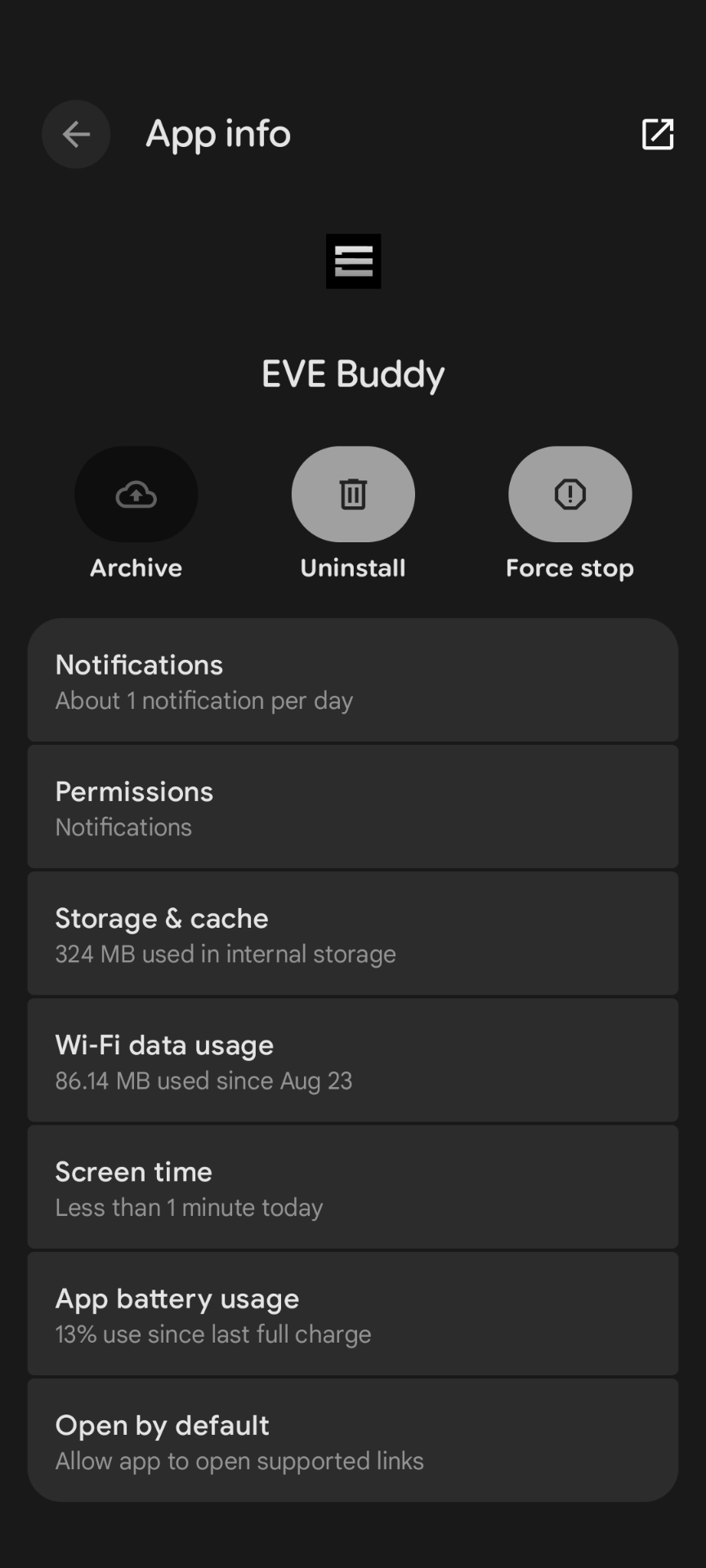
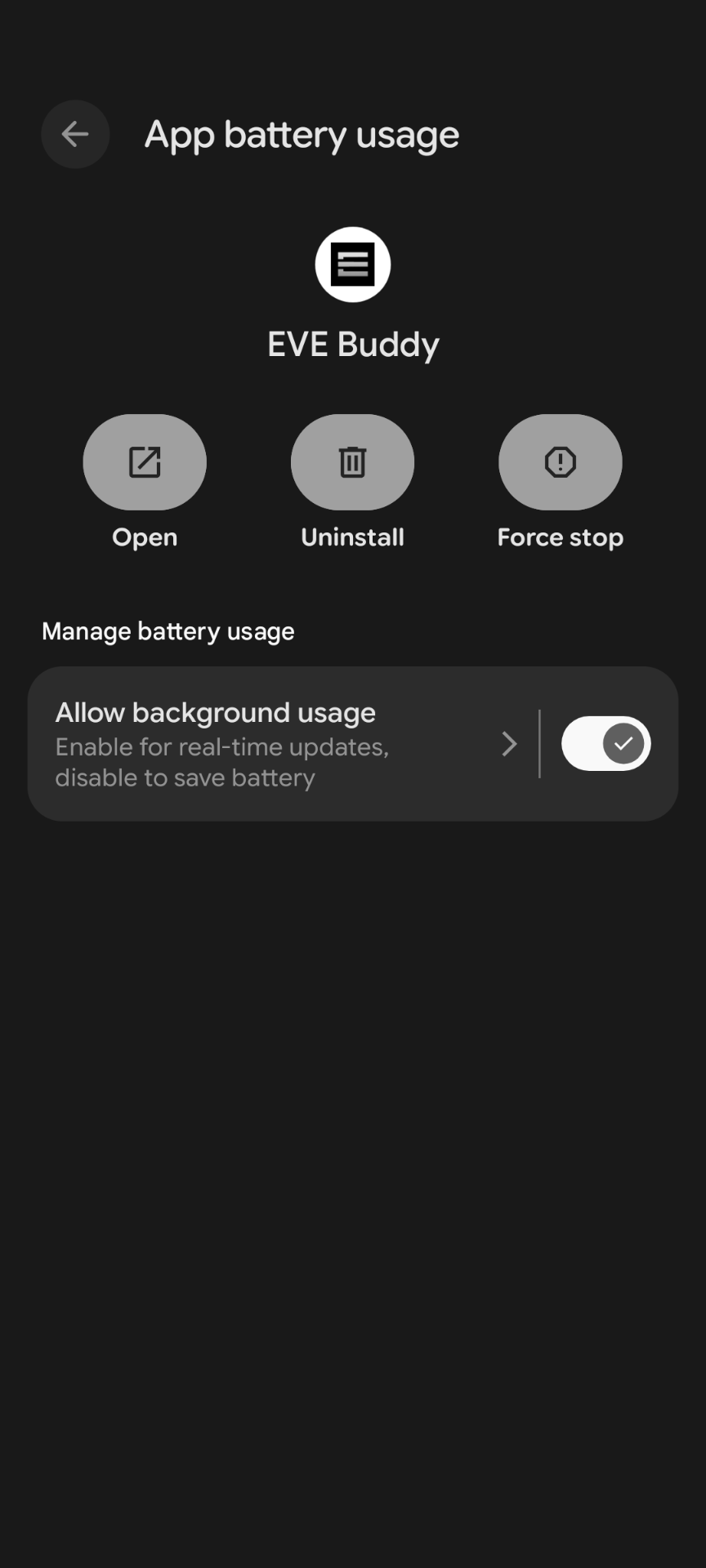
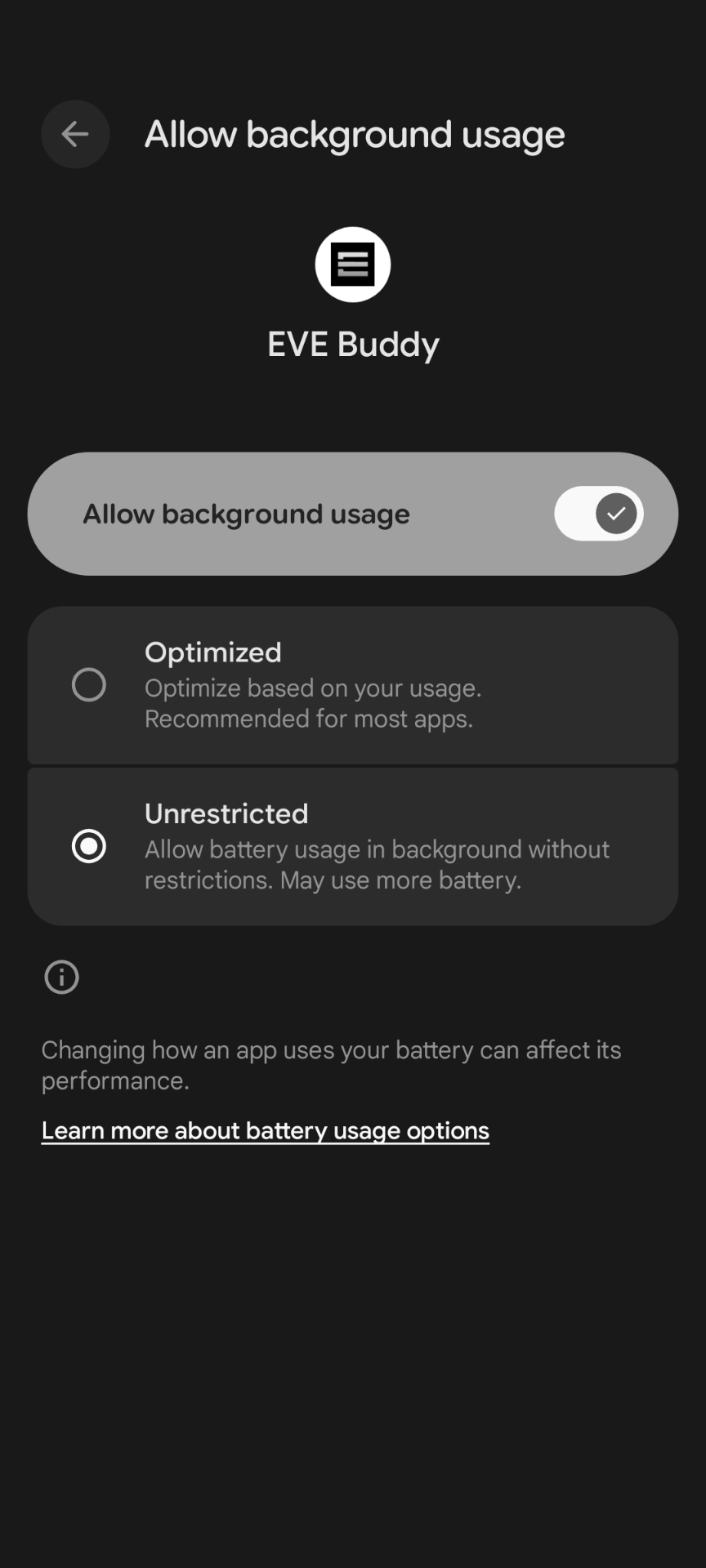
Enable unrestricted background usage
- Open the Settings app.
- Go to Apps and choose EVE Buddy.
- Choose “App battery usage”.
- Select “Allow background usage”.
- Make sure the “Unrestricted” option is selected. That’s it.
Enable notifications
- In EVE Buddy, go to Settings and enable which kinds of notifications you want to receive (e.g. mails).
- Send a test notification (via the menu in Settings).
- When asked, allow EVE Buddy to send Android notifications.
You should now see a test notification.
Updating
The app will inform you when a new version is available. To update, download and install the newest version for your platform.
Uninstalling
Windows, Linux and macOS
The desktop versions have a special mode for removing user data. First, run the app with the following option:
./evebuddy --delete-data
This will ask for confirmation and then delete your user data like characters, log files, etc. from your computer.
Then delete the executable itself:
rm evebuddy
If you installed the tarball, run either make user-uninstall or sudo make uninstall instead, depending on how you installed it.
Android
On Android you can uninstall the app via the system’s Settings app. This will also remove all data.